
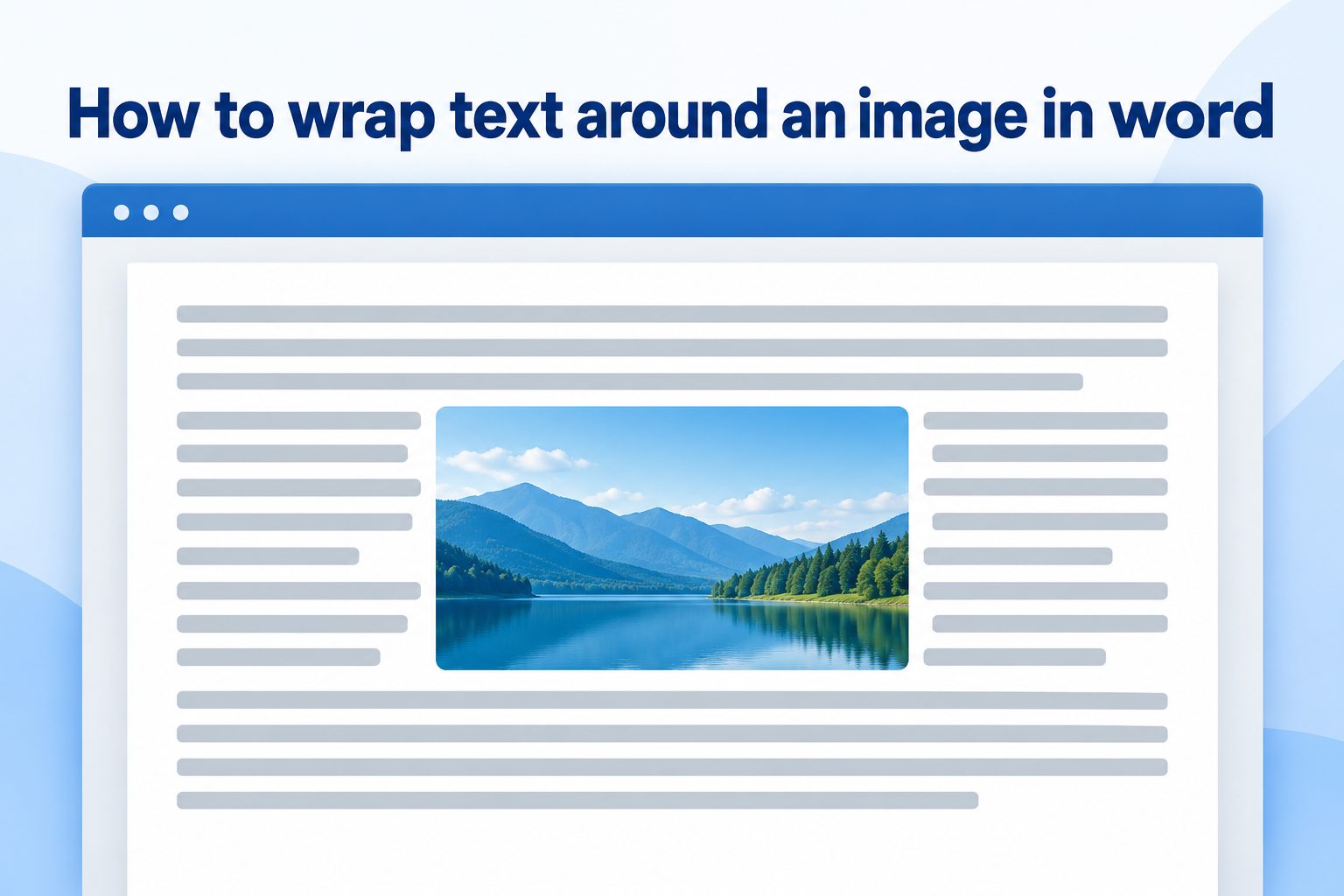
Wrapping text around an image in Word is a simple way to make documents look cleaner, more professional, and easier to read. Whether you are creating a report, newsletter, brochure, school assignment, résumé, or instruction guide, text wrapping lets your words flow neatly beside, above, below, or around a picture. Instead of leaving large blank spaces, you can place images where they support the content without disrupting the page layout. This guide explains how to wrap text around an image in Word, which wrap options to choose, how to adjust picture placement, and how to avoid common formatting problems. You will also find practical examples, useful tips, and answers to common questions so you can use images confidently in any Word document.
Why Text Wrapping Matters in Word
Text wrapping controls the relationship between a picture and the words around it. By default, Word may place an inserted image “In Line with Text,” meaning it behaves much like a large character in a sentence. That setting is useful in some cases, but it often creates awkward spacing.
When you wrap text around an image, you gain more control over the visual balance of the page. A picture can sit beside a paragraph, fit into a corner, or become a background element while the text remains readable. This is especially helpful when a document includes several images.
Good text wrapping also improves scanning. Readers can connect an image with the nearby explanation instead of searching for a caption or related section elsewhere on the page. The result is a document that feels intentional rather than crowded.
How to Wrap Text Around an Image in Word
Start by inserting the image into your document. Select the Insert tab, choose Pictures, and then pick the image from your device or another available source. Once the picture appears, click it once to select it.
A small Layout Options button usually appears near the upper-right side of the selected picture. Click that button to see the available text wrapping styles. You can also go to the Picture Format tab, select Wrap Text, and choose the setting you want.
After selecting a wrapping style, drag the picture to the desired location. Word will move surrounding text based on the option you selected. If the picture does not behave as expected, open the Wrap Text menu again and try another style.
1. Use Square for Simple Side-by-Side Layouts
The Square option places text around the outside edges of an image. Word treats the picture as a rectangular object, even if the image itself has rounded corners or an irregular shape. This is one of the easiest and most common choices for reports, newsletters, and school documents.
Use Square when you want an image on the left or right side of a paragraph. It keeps the page structured and gives text a clear boundary. You can then drag the picture slightly up or down until it aligns well with the related content.
2. Choose Tight for Closer Text Placement
The Tight option allows text to move closer to the actual outline of an image. It works best with pictures that have transparent backgrounds, such as a cutout product photo, logo, or illustration. It can make a layout look more polished than Square wrapping.
However, Tight wrapping can appear uneven if the image has a busy or rectangular background. Check that the text remains easy to read and that there are no cramped areas beside the picture. A little extra spacing often improves the final result.
3. Select Through for Transparent Images
The Through option is similar to Tight wrapping, but it allows text to fill spaces inside an image’s transparent areas. It is mainly useful for graphics with open shapes, such as diagrams, icons, or images with unusual outlines.
This option is less common in standard business documents because it can make the text arrangement harder to predict. Use it when you have a clear design purpose and enough time to review the layout carefully.
4. Use Top and Bottom for Clear Separation
The Top and Bottom option places the image on its own horizontal area. Text appears above the picture and continues below it, but does not flow down either side. This setting works well for wide photographs, screenshots, charts, and visual examples.
Choose this option when an image needs full attention or when placing text beside it would make the page look crowded. It is also useful when the image contains details that readers need to inspect closely.
5. Try Behind Text for Background Effects
Behind Text places the image beneath the document text. It can create a watermark-like effect or allow a faint background graphic to appear on the page. This option is useful for decorative designs, certificates, flyers, and branded templates.
Be careful with readability. If the image is too dark, colorful, or detailed, the text may become difficult to see. Consider reducing the image transparency or using a lighter picture before placing it behind text.
6. Use In Front of Text for Flexible Placement
In Front of Text places the image above the text layer. This gives you complete freedom to move the picture anywhere on the page, but it can cover words if you are not careful. It is commonly used for callouts, decorative shapes, signatures, and layout elements.
Use this setting only when you want the picture to overlap text intentionally or when you need precise placement. Always review the document afterward to ensure no important words are hidden behind the image.
7. Keep In Line with Text When Needed
In Line with Text is not technically a wrap-around option, but it is important to understand. It makes the picture act like a text character, so it moves when you add or remove words. This can be useful for small icons, logos in letterheads, or images that must stay tied to a sentence.
Choose this setting when layout stability matters more than flexible positioning. It is often the safest choice in documents that will be edited by several people or opened in different versions of Word.
Choosing the Best Text Wrap Option
The best choice depends on the image, the document purpose, and the amount of surrounding text. There is no single option that works perfectly in every situation.
Square is usually the best starting point for ordinary documents because it is clean, predictable, and easy to adjust. Tight and Through are better for transparent graphics or creative layouts. Top and Bottom works well for wide visuals, while Behind Text and In Front of Text are best reserved for design-focused documents.
Before finalizing the layout, view the page at normal reading size. An arrangement that looks good when zoomed in may feel cluttered when viewed as a full page. Make sure the image supports the content rather than distracting from it.
Steps for Positioning a Wrapped Image
1. Insert the image into the document and click it once to select it.
2. Open Layout Options or use the Wrap Text menu under Picture Format.
3. Choose a wrapping style, such as Square, Tight, or Top and Bottom.
4. Drag the image to the left, right, center, or another suitable location.
5. Check whether the nearby text flows naturally and remains readable.
6. Resize the picture by dragging a corner handle rather than a side handle. This helps preserve the original proportions.
7. Open More Layout Options if you need to change the distance between the text and image.
8. Review the page in Print Layout view to make sure the image is not too close to margins, headings, or page breaks.
9. Save the document and inspect it again if you plan to export or print it.
Adjusting the Distance Between Text and Images
Sometimes the text sits too close to a wrapped image. This can make the page feel crowded, even when the wrap style is correct. Word allows you to add space around the image so the text has room to breathe.
Select the image, open Wrap Text, and choose More Layout Options. In the Text Wrapping settings, look for the Distance from Text controls. You can set different distances for the top, bottom, left, and right sides of the picture.
A small amount of space usually makes a big difference. Consistent spacing also helps your document look more professional. If you use several images, try to apply similar spacing around each one.
Practical Examples of Text Wrapping
1. Business Report Images
In a business report, a small chart or workplace photo can sit on the right side of a paragraph using Square wrapping. The text explains the data or situation while the image remains visible nearby. This layout uses page space efficiently without interrupting the report’s flow.
2. Newsletter Features
A newsletter often uses a photo beside a short story or announcement. Square or Tight wrapping gives the page a magazine-like appearance. Place the image near the beginning of the story so readers immediately understand the connection between the visual and the topic.
3. School Assignments
Students can use Top and Bottom wrapping for diagrams, maps, or screenshots that require attention. For smaller decorative images, Square wrapping is usually enough. The important point is to keep the text readable and avoid placing pictures too close to headings or page margins.
4. Résumés and Portfolios
A small professional headshot may use Square wrapping near contact information, while portfolio documents can use Top and Bottom wrapping for project screenshots. Keep images modest in size so they do not overpower key information about skills, experience, or results.
5. Instruction Documents
In manuals and how-to documents, screenshots often work best with Top and Bottom wrapping because readers need enough width to see buttons, menus, or labels. Place the explanation immediately before or after the image so the reader can follow each step without confusion.
6. Flyers and Brochures
Creative documents may use Behind Text for a light background image or In Front of Text for a decorative graphic. These options can produce attractive results, but the main message must always remain easy to read from a normal viewing distance.
Common Text Wrapping Mistakes to Avoid
1. Choosing a Wrap Style Without Checking Readability
A wrap setting may look interesting but still make the text hard to follow. Tight and Through wrapping can create narrow text columns or uneven spacing. Always read the nearby paragraph as a reader would, rather than judging the layout only by appearance.
2. Using Images That Are Too Large
A large image can force text into a thin column, create awkward page breaks, or leave too much empty space. Resize the picture before trying multiple wrap settings. In many cases, a smaller image with clear spacing looks better than a large image that dominates the page.
3. Stretching Pictures Out of Proportion
Dragging a picture from the side or top can distort it. Faces may look unusually wide, charts may become inaccurate, and logos may lose their professional appearance. Resize from a corner handle whenever possible to keep the original proportions intact.
4. Ignoring Text Distance Settings
Even a well-positioned image can look crowded if the text touches its edges. Add some space between text and images through More Layout Options. This small adjustment improves legibility and gives the overall page a more organized appearance.
5. Letting Images Cover Important Text
Images set In Front of Text can accidentally hide words, headings, or page numbers. This often happens after editing nearby paragraphs. Before sharing or printing the document, scroll through every page and check that all text remains visible.
6. Mixing Too Many Layout Styles
Using a different text wrapping style for every image can make a document feel inconsistent. Choose one or two approaches that suit the document’s purpose. For example, use Square for smaller photos and Top and Bottom for large charts or screenshots.
7. Forgetting to Check the Final Format
A layout can shift when a document is opened on another device, printed, or converted to a different format. Review the final version in Print Layout view and inspect every page. If the document is important, test the exported version before sending it.
Best Practices for Wrapping Text Around Images
1. Match the Image to the Content
Every picture should support a nearby point, example, or explanation. Avoid adding images simply to fill empty space. A relevant visual makes the document easier to understand and gives readers a reason to pause at the right moment.
2. Use Consistent Alignment
Decide whether most images will sit on the left, right, or center of the page. Consistent alignment gives long documents a more polished rhythm. You can vary the placement when needed, but random positioning can make a document feel unplanned.
3. Keep Captions Close When Needed
If an image needs explanation, place the caption directly below it or mention it in the nearby text. Readers should not have to guess why the image is included. Clear context is especially important for charts, screenshots, diagrams, and instructional visuals.
4. Leave Enough White Space
White space is the empty area around text and images. It makes pages easier to scan and reduces visual stress. Do not force every part of the page to be full. A balanced layout is usually more effective than a crowded one.
5. Check Page Breaks Carefully
Images can push text onto the next page or leave a heading stranded at the bottom of a page. After wrapping text around an image in Word, inspect the surrounding pages. Move the image slightly or adjust its size if the page break looks awkward.
6. Use High-Quality Images
Blurry or pixelated images can make even a well-formatted document look less professional. Use clear images that remain readable at the size you choose. Avoid enlarging a small image too much, because that usually reduces quality.
7. Save a Stable Version Before Major Changes
If you are experimenting with several layouts, save a copy before making large adjustments. This lets you test different wrap styles without worrying about losing a version that already looked good. It is especially useful in long reports or collaborative documents.
Frequently Asked Questions
1. Why Will My Text Not Wrap Around a Picture in Word?
The image may be set to In Line with Text, which causes Word to treat it like a character rather than a floating object. Select the picture, open Layout Options, and choose Square, Tight, or another wrapping style. Then drag the image to a position beside the paragraph.
2. Which Text Wrap Option Is Best in Word?
Square is usually the best general option because it creates a neat, predictable boundary around the image. It works well for most reports, letters, newsletters, and school assignments. Use other options when you have a specific design need, such as a wide chart or transparent graphic.
3. How Do I Move an Image Freely in Word?
Select the image and change its wrapping setting from In Line with Text to Square, Tight, Behind Text, or In Front of Text. Once it becomes a floating object, you can drag it more freely around the page. Check nearby text after moving it.
4. Can I Wrap Text Around a Transparent Image?
Yes. Tight and Through wrapping can work especially well with transparent images because Word can place text closer to the visible edges. The final result depends on the image shape, so review the layout carefully and adjust the distance from text if necessary.
5. Why Does My Image Move When I Edit Text?
A floating image may be anchored to a paragraph, so changes to nearby text can affect its position. You can adjust layout settings to control whether the image moves with text or stays fixed on the page. Review the document after making major edits.
6. How Can I Stop Text From Getting Too Close to an Image?
Select the image, open the text wrapping settings, and choose More Layout Options. Increase the distance between the text and the picture on the appropriate sides. Adding a small amount of space improves readability and makes the layout look less crowded.
Conclusion
Learning how to wrap text around an image in Word gives you more control over the look and readability of your documents. The right wrap setting helps pictures fit naturally beside related content, reduces empty space, and creates a cleaner page layout.
Start with Square wrapping for most everyday documents, then use options such as Tight, Top and Bottom, Behind Text, or In Front of Text when the design calls for them. Review spacing, alignment, image size, and page breaks before you finish, and your document will look organized and professional.