
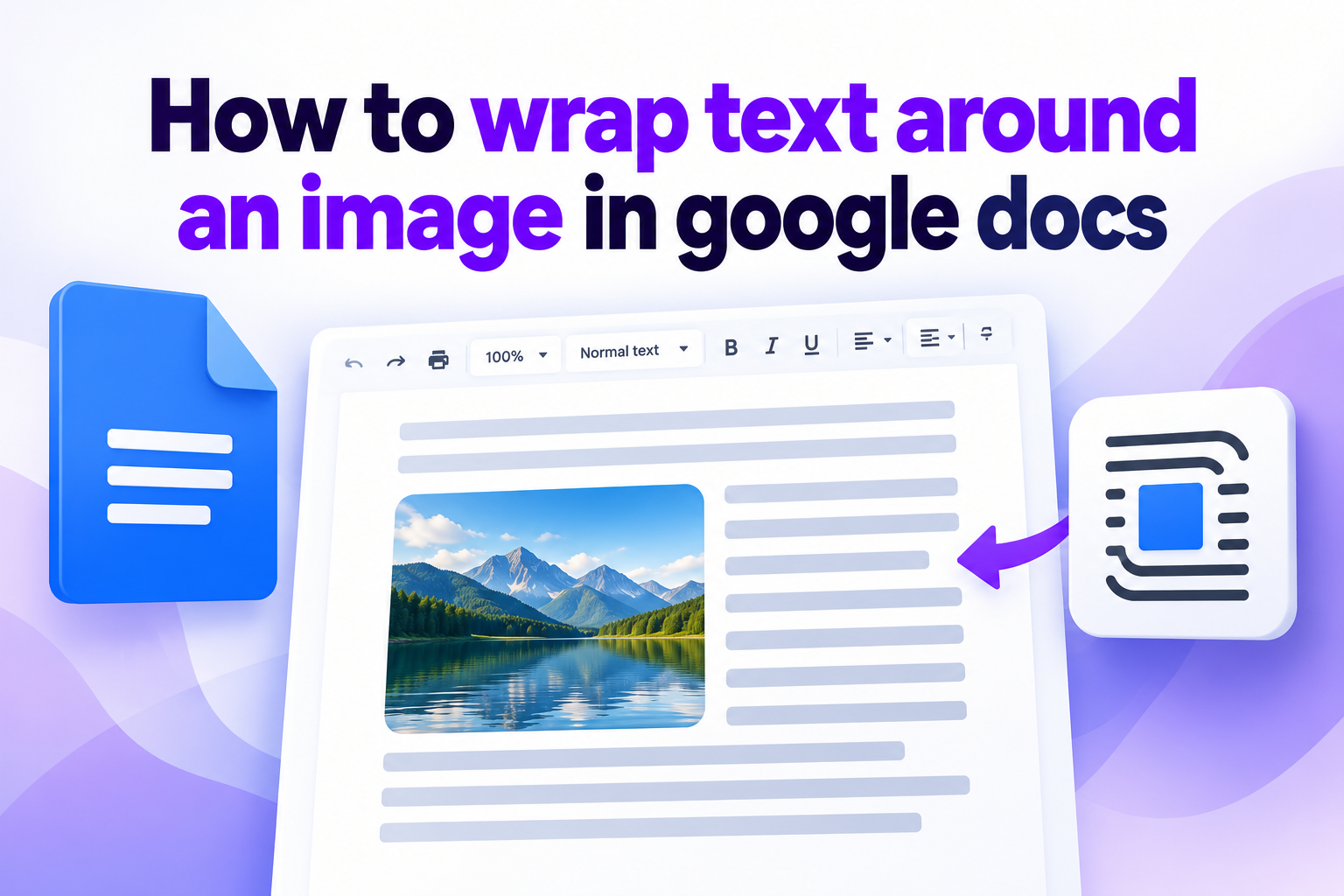
How To Wrap Text Around An Image In Google Docs
Learning how to wrap text around an image in Google Docs makes documents look cleaner, more balanced, and easier to read. Instead of leaving a large empty area beside a picture, text can flow naturally around it, similar to a magazine article or professional report. This feature is useful for school assignments, newsletters, proposals, resumes, project documents, and simple guides. It also gives you more control over page layout without requiring advanced design software. In this guide, you will learn what text wrapping means, why it matters, how to turn it on, how to adjust spacing and position, and how to avoid common layout problems.
What Text Wrapping Means In Google Docs
Text wrapping controls the relationship between an image and the words around it. When an image is inserted into a document, Google Docs can treat it as part of a line of text or allow text to move around its edges.
The default option is often called In Line. With this setting, the image behaves much like a large character in a sentence. Text stays above and below the image rather than flowing beside it. This can work well for simple documents, but it may create too much blank space.
The Wrap Text option lets words appear on the left, right, or both sides of an image. It is useful when you want to place an image beside a paragraph without interrupting the page flow.
Google Docs also includes Break Text, which keeps text above and below the image while allowing the image to sit independently on the page. Behind Text and In Front Of Text provide more flexible positioning but are usually less suitable for standard readable documents.
Why Wrap Text Around Images
Wrapping text around images is not only a visual choice. It can improve how readers move through your document and help you use page space more effectively.
A wrapped image creates a more natural reading path because readers can continue reading beside the visual instead of jumping over a large empty area. This is especially helpful in longer reports or instructional documents.
It also makes a document look more polished. A well-positioned image can support a paragraph, illustrate an example, or break up a dense page without making the layout feel crowded.
Text wrapping is practical when space is limited. In a one-page resume, flyer, or newsletter, placing text beside a small image can save room while keeping the page organized.
However, wrapping works best when the image is relevant and reasonably sized. A large image with too much nearby text can make the page feel cramped and distract readers from the main message.
How To Wrap Text Around An Image In Google Docs
The process is simple once you know where to find the image layout controls.
1. Insert Your Image
Place the cursor where you want the image to appear. Use the Insert menu, choose Image, and select the source of the image. After the image appears in the document, click it once to reveal the image controls.
2. Select The Wrap Text Option
When the image is selected, a small toolbar appears beneath it. Choose Wrap Text from the available layout options. The text in nearby paragraphs should begin moving around the image.
3. Move The Image Into Position
Click and drag the image to the preferred location. You can place it on the left or right side of a paragraph, depending on the layout you want. Watch how the text shifts while you move it.
4. Resize The Image Carefully
Use the corner handles to make the image larger or smaller. Dragging from a corner helps preserve the original proportions. Avoid stretching the image from the side because this can make it look distorted.
5. Adjust The Margin Around The Image
After selecting Wrap Text, you can usually choose the amount of margin around the image. This controls how close the surrounding words appear to the picture. A small margin gives a compact look, while a larger margin adds breathing room.
6. Review The Paragraph Flow
Read the text near the image after making changes. Make sure words do not begin or end in awkward places and that the image does not separate a heading from the paragraph it introduces.
7. Check The Whole Page
Scroll through the document and review the page as a reader would. An image may look good in one spot but create an unwanted gap or page break elsewhere. Minor adjustments often improve the final result.
Choosing The Right Image Layout Option
Google Docs offers several layout settings, and each one serves a different purpose.
In Line is best for images that belong between paragraphs, such as a chart, screenshot, or large photograph that should remain centered. It keeps the document structure simple and predictable.
Wrap Text is the best choice when an image is small enough to sit beside written content. It works well for profile images, small product photos, logos, illustrations, and decorative visuals.
Break Text is useful when you want the image to stand out but do not want text beside it. It creates a cleaner separation than the in-line setting while still keeping the visual anchored to a specific area.
Behind Text can be used for subtle background effects, but it may reduce readability. Use it carefully and avoid placing important text over detailed or dark images.
In Front Of Text gives the image the highest layer on the page. It can be useful for design-focused documents, but it often covers words and causes problems in standard reports.
How To Position Wrapped Images Effectively
Image placement affects both the appearance and readability of a document. A good position supports the content instead of competing with it.
Place an image near the paragraph it explains. For example, if a paragraph describes a process, keep the related screenshot or illustration nearby. Readers should not have to search the page to connect the image with the explanation.
Use the left side when you want readers to encounter the image before reading the paragraph. This can work well when the image introduces an idea or sets the context for the text.
Use the right side when you want the paragraph to lead and the image to act as supporting material. This often feels natural in reports and business documents.
Avoid positioning an image too close to a heading. Headings should remain clearly connected to the paragraph that follows. If an image pushes the paragraph away from its heading, move the image lower.
Keep images away from page edges unless you are creating a deliberate design layout. A small amount of white space around the image helps the page feel more organized.
Use a consistent alignment style throughout longer documents. If one image is left-aligned and another is right-aligned without a clear reason, the document may look uneven.
Adjusting Image Margins And Spacing
The margin around a wrapped image is one of the most important settings for a clean layout. Without enough spacing, text can appear pressed against the image edge and become hard to read.
A small margin is useful for compact documents where space matters. It allows text to sit close to the image while still maintaining a visible separation.
A medium margin is often the safest choice for general documents. It keeps the image connected to the paragraph without making the layout feel crowded.
A larger margin works well when an image is visually detailed or when the document has a spacious, formal style. It gives the reader’s eyes room to move between the text and the visual.
Use the same margin setting for similar images. Consistency makes the document look intentional. If every image has a different amount of space around it, the page can feel unplanned.
If text appears awkwardly beside the image, try changing the image size before changing the margin. A slightly smaller image may create a more balanced text column and solve the problem quickly.
Practical Uses For Text Wrapping In Google Docs
Text wrapping can improve many types of documents when used with a clear purpose.
In school assignments, students can place a relevant historical image, scientific diagram, or author photo beside an explanation. This makes the work easier to scan and can improve presentation quality.
In newsletters, wrapped images help combine announcements, updates, and event details without leaving large areas of unused space. A photo beside a short story can make the content more engaging.
In business reports, small charts, product images, or team photos can sit beside supporting text. This makes a report feel more informative while keeping the layout professional.
In resumes, a small professional headshot may be wrapped near contact details or a short profile section when the industry and local conventions make a photo appropriate.
In instructional guides, screenshots can be placed beside step descriptions. This helps readers compare written instructions with what they should see on their screen.
In personal projects, such as travel journals, family newsletters, or event programs, wrapped images create a more magazine-like layout without needing specialized publishing tools.
Common Mistakes To Avoid
Using Too Large An Image
A large image leaves too little horizontal room for text. The text may shrink into a narrow column, causing short lines and awkward reading. Reduce the image size until the surrounding paragraph has enough width to remain comfortable.
Putting Text Too Close To The Image
When text touches the image edge, the page can look cluttered. Use the image margin settings to create a small visual gap. This improves readability and makes the layout feel more deliberate.
Wrapping Around A Detailed Image
An image with a busy background can distract readers when text sits beside it. Consider using a simpler image, cropping it, or moving it above or below the paragraph if the visual is too complex.
Separating Headings From Their Paragraphs
Dragging an image into the wrong spot can push text away from its heading. Always check that headings remain close to the content they introduce, especially after resizing or moving an image.
Using Inconsistent Alignment
Randomly placing images on different sides of the page can make a document feel disorganized. Choose a simple pattern, such as right-aligned images for examples and left-aligned images for introductions, then use it consistently.
Ignoring Mobile And Print Layouts
A document can look different when printed, downloaded, or opened on a smaller screen. Review the layout in print preview or export format before sharing an important document. If the text becomes too narrow, use a simpler image position.
Best Practices For Better Results
Use high-quality images that remain clear after resizing. A blurry or stretched visual can make even a well-written document look less professional.
Keep the image relevant to the nearby content. Decorative visuals can be useful, but they should not distract from the document’s purpose.
Use smaller images for text wrapping and larger images for full-width sections. This simple rule helps prevent narrow, difficult-to-read columns of text.
Choose one image style for the document. For example, use similar photo sizes, border choices, and alignments. Visual consistency helps readers focus on the information.
Review the document at normal reading size. Zooming in too far can hide spacing problems, while zooming out too much can make the layout appear better than it is.
Use text wrapping sparingly in highly formal documents. Legal documents, academic papers with strict formatting rules, and accessibility-focused files may be better served by placing images above or below paragraphs.
Examples Of Effective Text Wrapping
A small portrait beside a short employee introduction works well because the image supports the text without taking over the page. The paragraph can explain the person’s role while the image gives the section a human touch.
A product photo beside a feature description can make a sales sheet easier to understand. Keep the photo small enough that the text remains the main focus and use adequate margins around it.
A screenshot beside a software instruction is useful when the image highlights the exact button, menu, or setting discussed in the paragraph. Make sure the screenshot is large enough to be readable.
A travel newsletter can place a landscape photo to the right of a short destination description. The image adds atmosphere while the text gives practical details about the location.
A classroom handout can use a small diagram next to an explanation of a concept. This helps visual learners without forcing all students to stop reading and scan a separate section.
A nonprofit update can place an event photo beside a brief impact story. The photo adds emotional context, while the surrounding text provides the facts and message.
When Not To Wrap Text Around An Image
Text wrapping is helpful, but it is not always the best layout choice. Use a different option when clarity is more important than a compact design.
Avoid text wrapping around large charts, tables, maps, or detailed screenshots. These visuals need enough width for readers to see labels, numbers, and details clearly.
Do not wrap text around images in documents that require strict academic, legal, or organizational formatting unless the guidelines allow it. A simple centered image with a caption may be safer.
Avoid wrapping text when the paragraph is very short. A small block of text beside an image can look unbalanced and leave excessive empty space beneath it.
Do not use wrap text for images that must stay attached to a particular sentence, such as a figure that needs a detailed caption. In-line placement may keep the relationship clearer.
Frequently Asked Questions
1. Can I Wrap Text Around Any Image In Google Docs?
Yes, most inserted images can use the Wrap Text option. Click the image and choose Wrap Text from the image toolbar. If the option does not appear immediately, make sure the image is selected and not currently being edited or replaced.
2. Why Is My Text Not Wrapping Around The Image?
The image may still be set to In Line, which places it within the text flow instead of allowing text beside it. Select the image, choose Wrap Text, and then drag it slightly if needed. Also check whether the image is too wide for text to fit beside it.
3. How Do I Add More Space Between Text And An Image?
Select the image after applying Wrap Text. The image options allow you to adjust the margin around the picture. Increase the margin gradually until the words have enough space and the page looks balanced.
4. Can I Move A Wrapped Image Anywhere On The Page?
You can move a wrapped image with considerable flexibility, but its position is still connected to the document’s text flow. Moving it may change nearby paragraphs or page breaks. Review the surrounding text after each adjustment to ensure the layout remains readable.
5. Is Wrap Text Good For Printing?
Wrap Text can print well when images are modest in size and margins are set correctly. Before printing or sharing, preview the document to check page breaks, text columns, and image positions. If the layout shifts, simplify the placement or reduce the image size.
6. Can I Use Text Wrapping On Mobile Devices?
You can view and make some image adjustments in the Google Docs mobile app, but layout controls may be easier to use on a computer. For detailed positioning, resizing, and margin adjustments, the desktop version usually offers a smoother experience.
Conclusion
Knowing how to wrap text around an image in Google Docs helps you create documents that use space well and feel easier to read. The key is to choose the Wrap Text option, resize the image carefully, adjust margins, and review how the surrounding paragraph flows.
Use wrapped images when they support the nearby content and improve the page layout. Keep visuals relevant, leave enough white space, and avoid making text columns too narrow. With a few thoughtful adjustments, your documents can look clearer, more polished, and more professional.